Create new code snippet
To generate a new template from a DVT predefined one, use the DVT: Create New Code Snippet… command and follow the steps:
Select the DVT predefined code snippet
Select an existing code snippets file or create a new one
Specify the code snippet file name in case you selected to create a new one
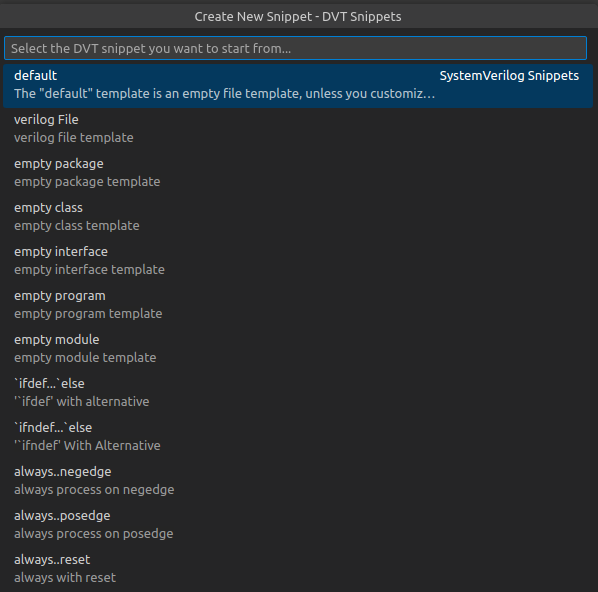
Step 1. Select DVT code snippet
Select the DVT predefined code snippet. The quick pick contains the code snippets corresponding to the selected natures.
Tip
When you have multiple project natures, you can quickly navigate between the associated code snippets using Alt+Arrow Up / Alt+Arrow Down.
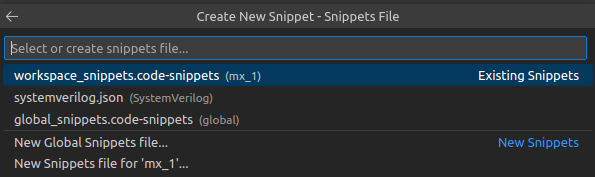
Step 2. Select file
Select the place where you want to insert the selected DVT code snippet. You can either insert it in an existing file or create a new one.
Step 3. Specify file name
In case you selected to create a new file in the previous step, you will be prompted to insert a file name for your new file.
Note
The specified file name will be suffixed with the .code-snippets extension.
Tip
To open an already existing snippets file you can use the Snippets: Configure Snippets command.
Tip
You can assign a custom keyboard shortcut to any code snippet for even faster access. For more information, see the Assign keyboard shortcuts to snippets chapter from the VS Code documentation.